How do I create a Designer QR Code in my account?
- How to create a designer QR Code in your account
- 1. Log into your account
- 2. Click on Design QR from the QR Code options menu
- 3. QR Code design templates
- 4. Choose your QR Code's colors and background
- 5. Select design patterns for your QR Code
- 6. Select your QR Code's frame and set a label
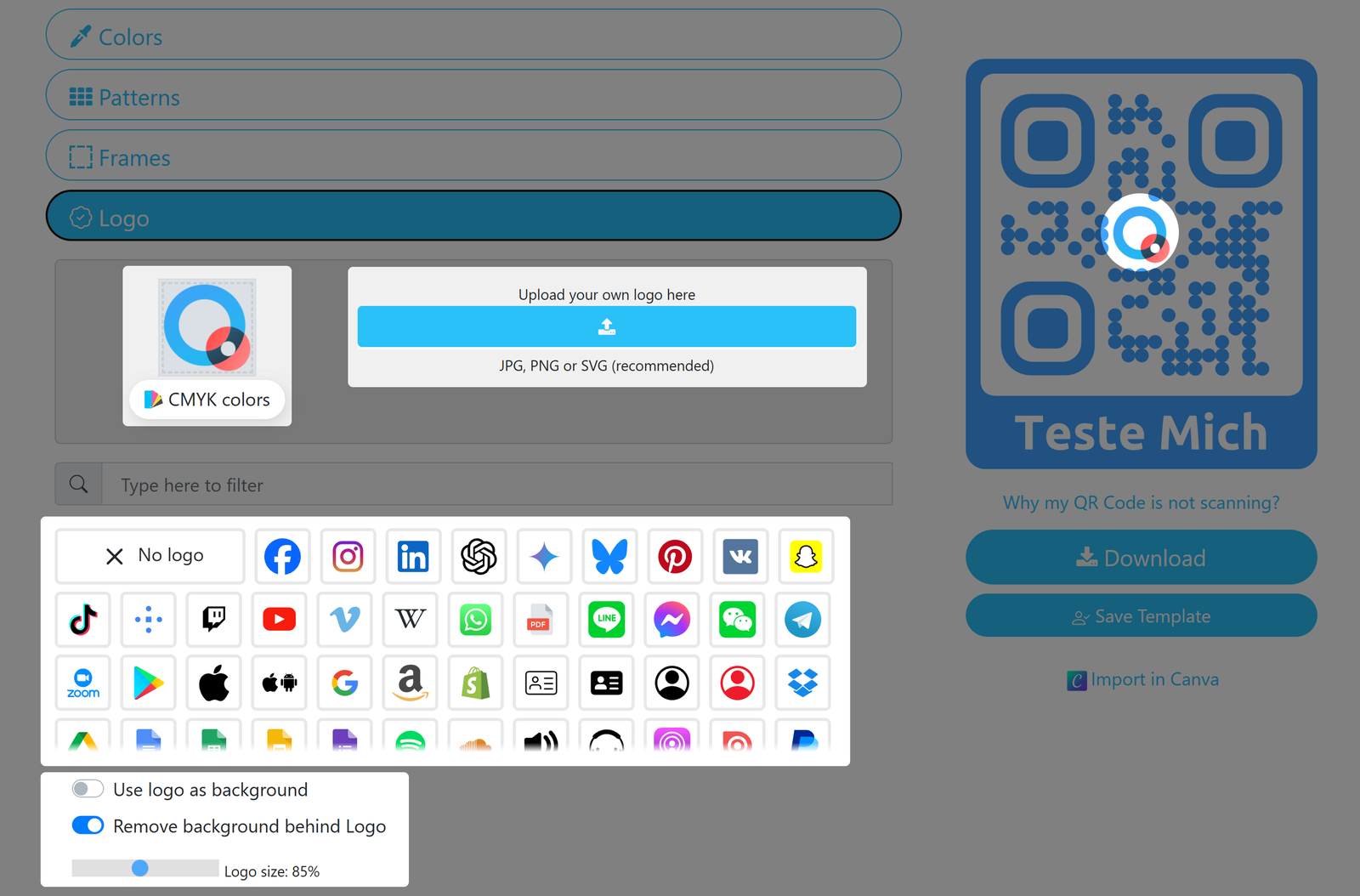
- 7. Choose or upload your QR Code's logo
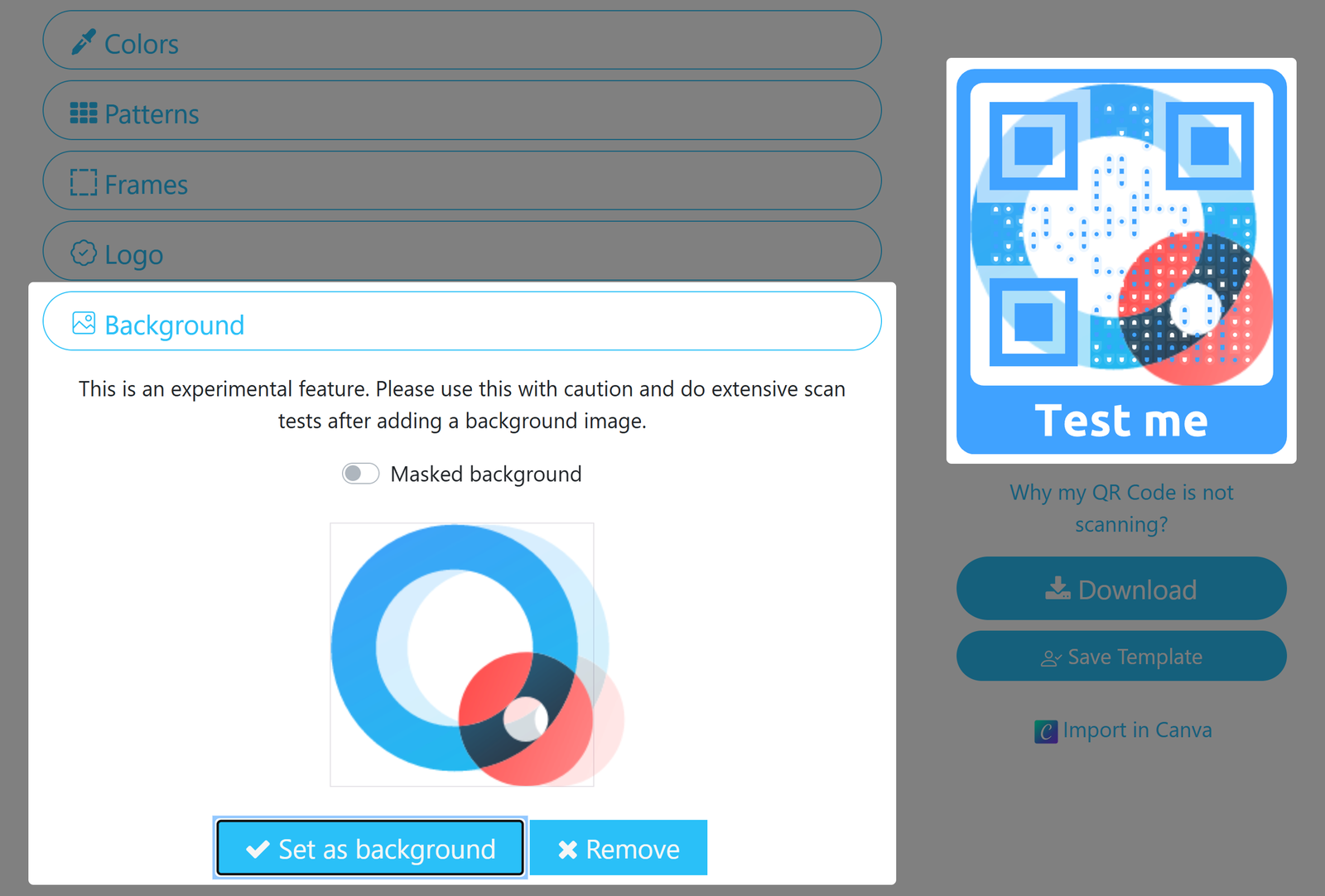
- 8. Use an image as your QR Code's background
- 9. Set your QR Code's size and ECL
- 10. Download your QR Code
- Saving your custom templates
- Optional template attributes
- Template Markers
- Deleting a template
- Overwriting an existing template
How to create a designer QR Code in your account
1. Log into your account
Faça login em sua conta em nossa plataforma QR.
Login
2. Click on Design QR from the QR Code options menu
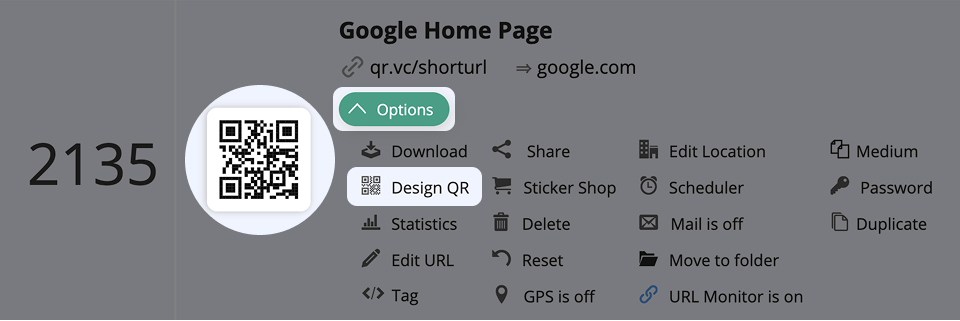
Time to take a closer look at the different options in our QR Code Designer, like templates, colors, logo, and more.
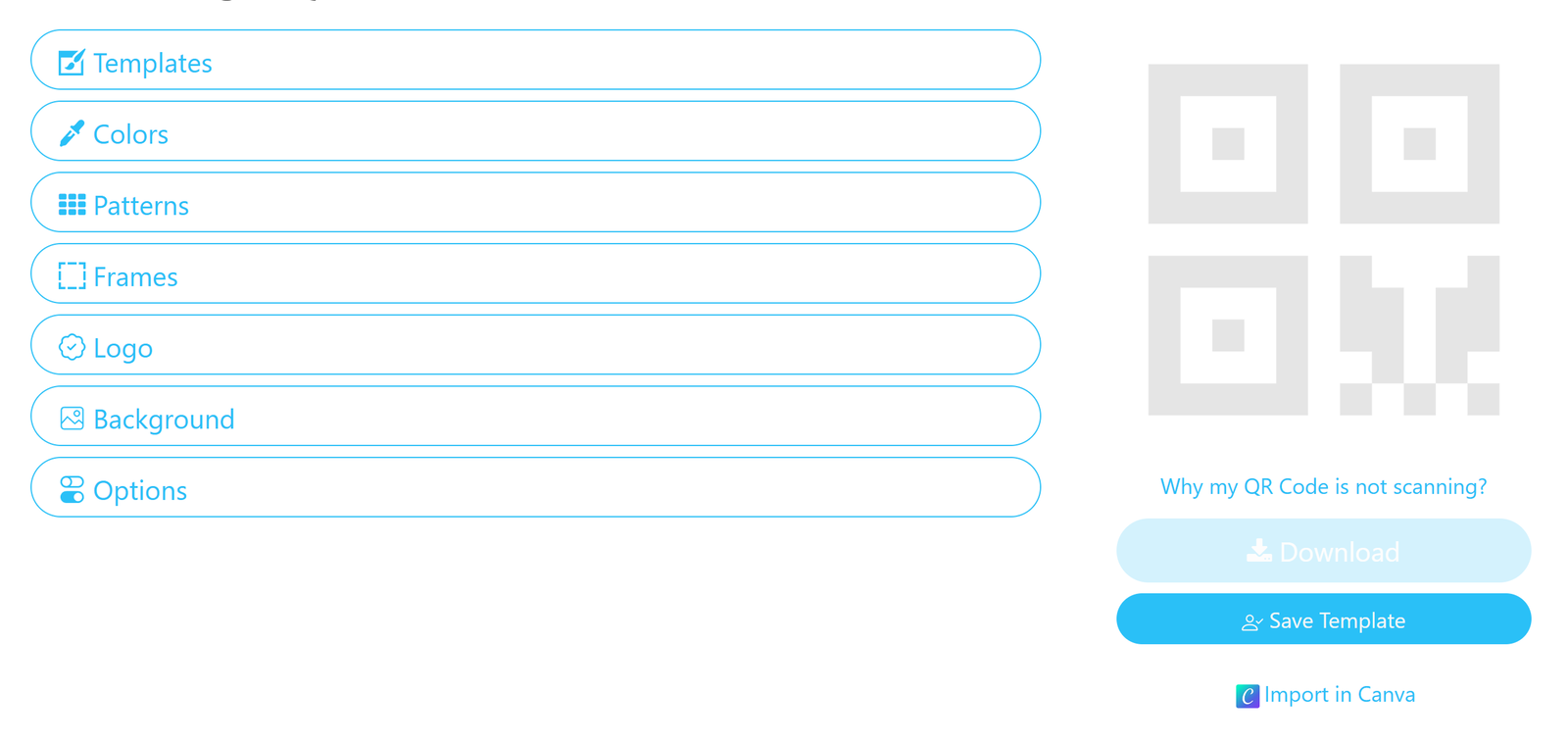
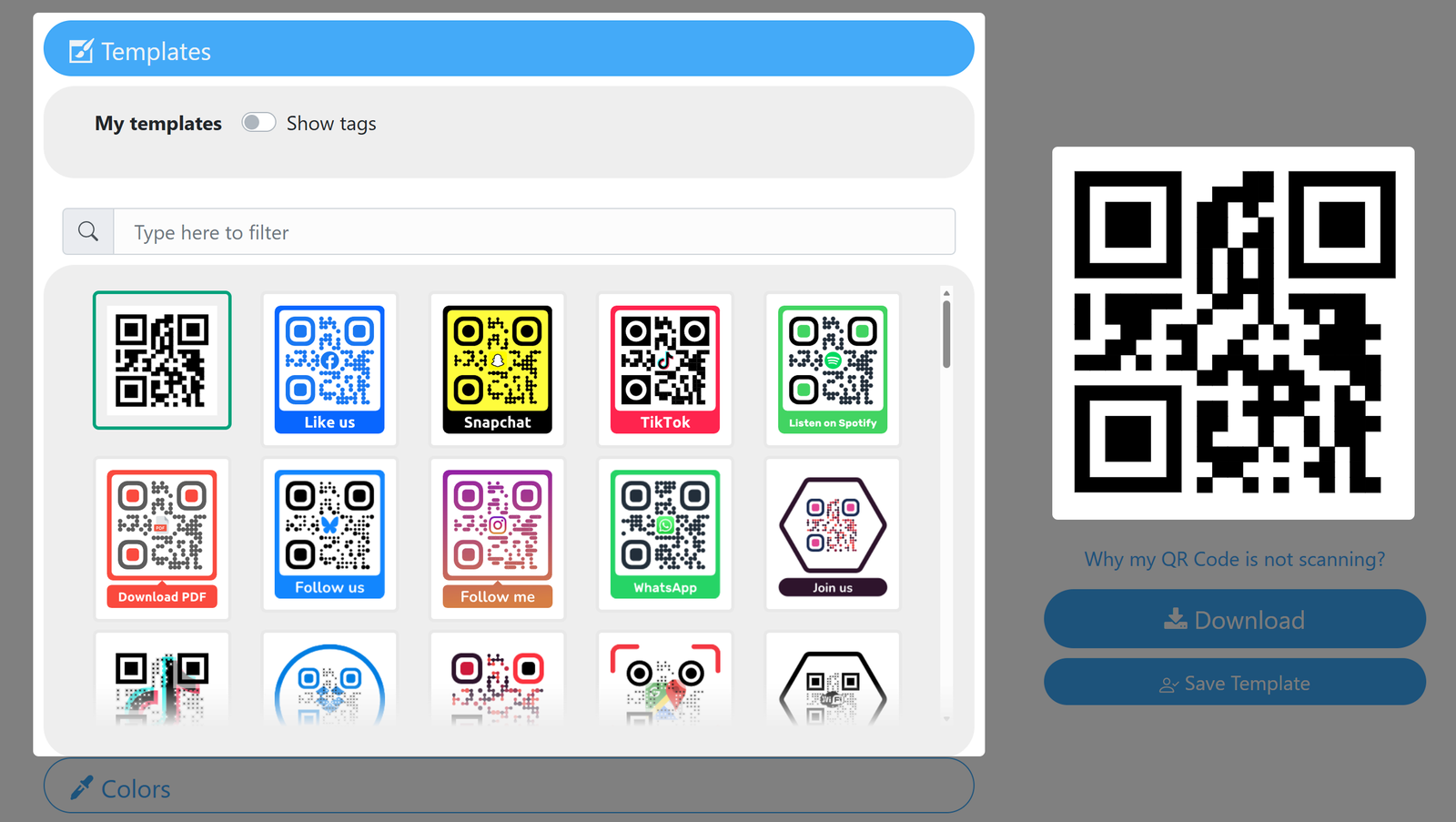
3. QR Code design templates
Choose between pre-made templates and your saved custom designs for your QR Code. Learn more about working with templates.
If you have no template ready and want to create a new design, continue with this article.
4. Choose your QR Code's colors and background
Tem várias opções à sua disposição para dar um toque de cor aos seus designs de códigos QR. Vamos dar uma vista de olhos rápida a todas elas.
Lembre-se de utilizar sempre cores com, pelo menos, um contraste moderado entre si e em relação ao fundo. Se o contraste for demasiado baixo, isso poderá dificultar o processo de digitalização.
Cor única
Escolha uma cor de fundo para aplicar a todos os elementos do código QR.
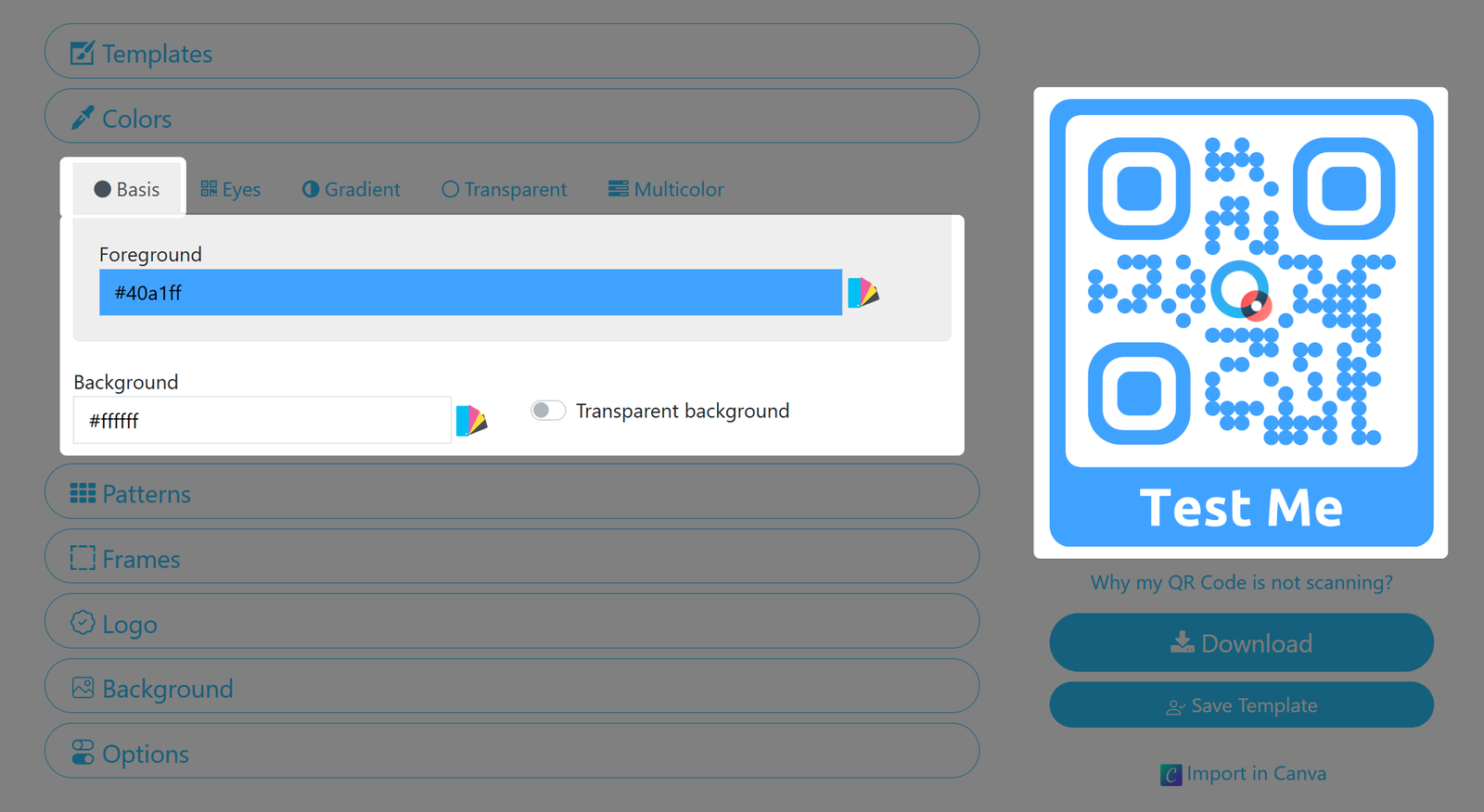
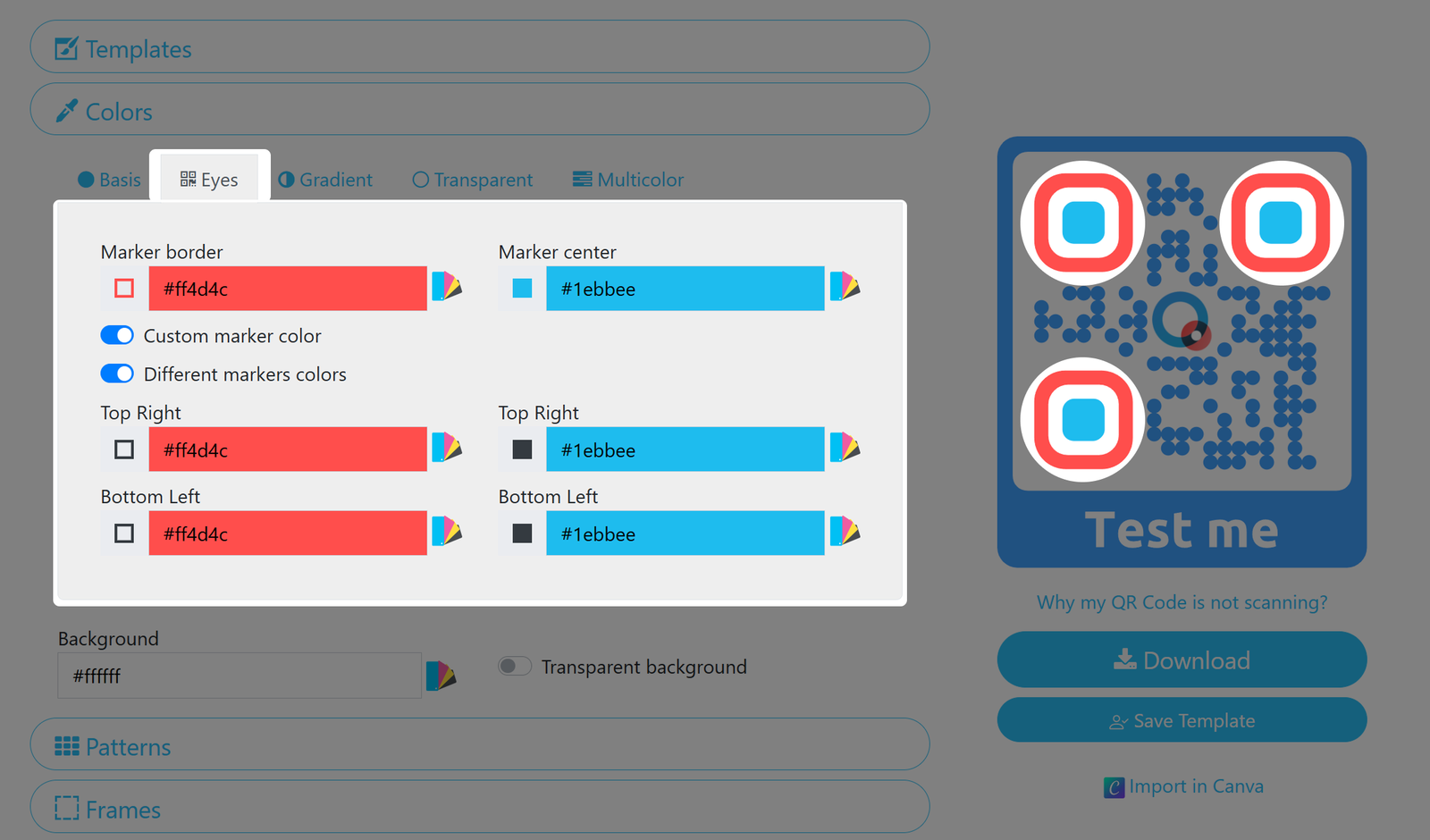
Marcadores
Defina as cores dos Marcadores do seu código QR. Pode utilizar cores diferentes para cada um dos três centros e bordas.
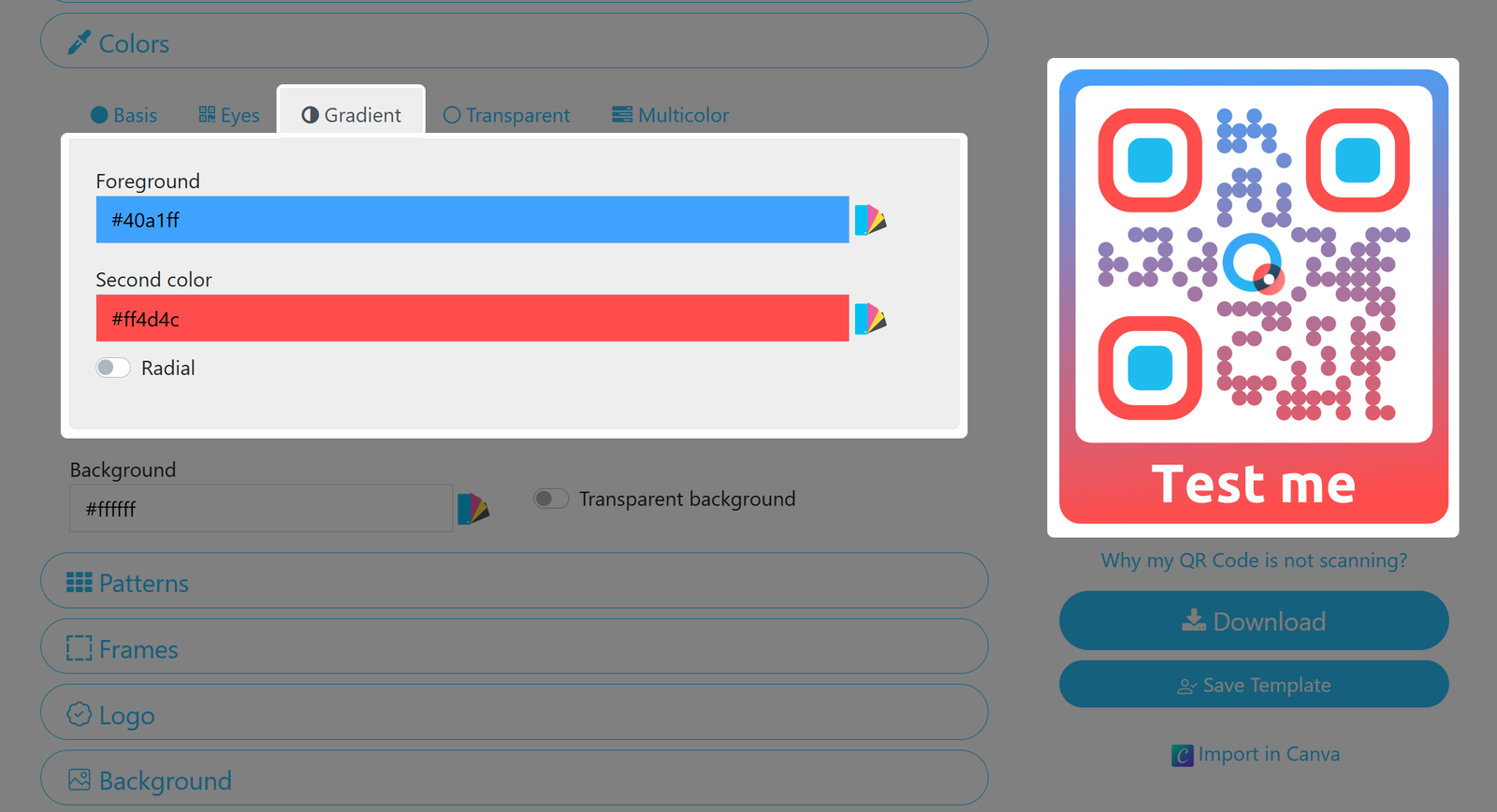
Degradê
Aplique uma mudança de cor em gradiente, de cima para baixo. Se os «Olhos» já tiverem sido definidos, não serão afetados pelo gradiente. Exiba as cores de forma radial ativando a opção.
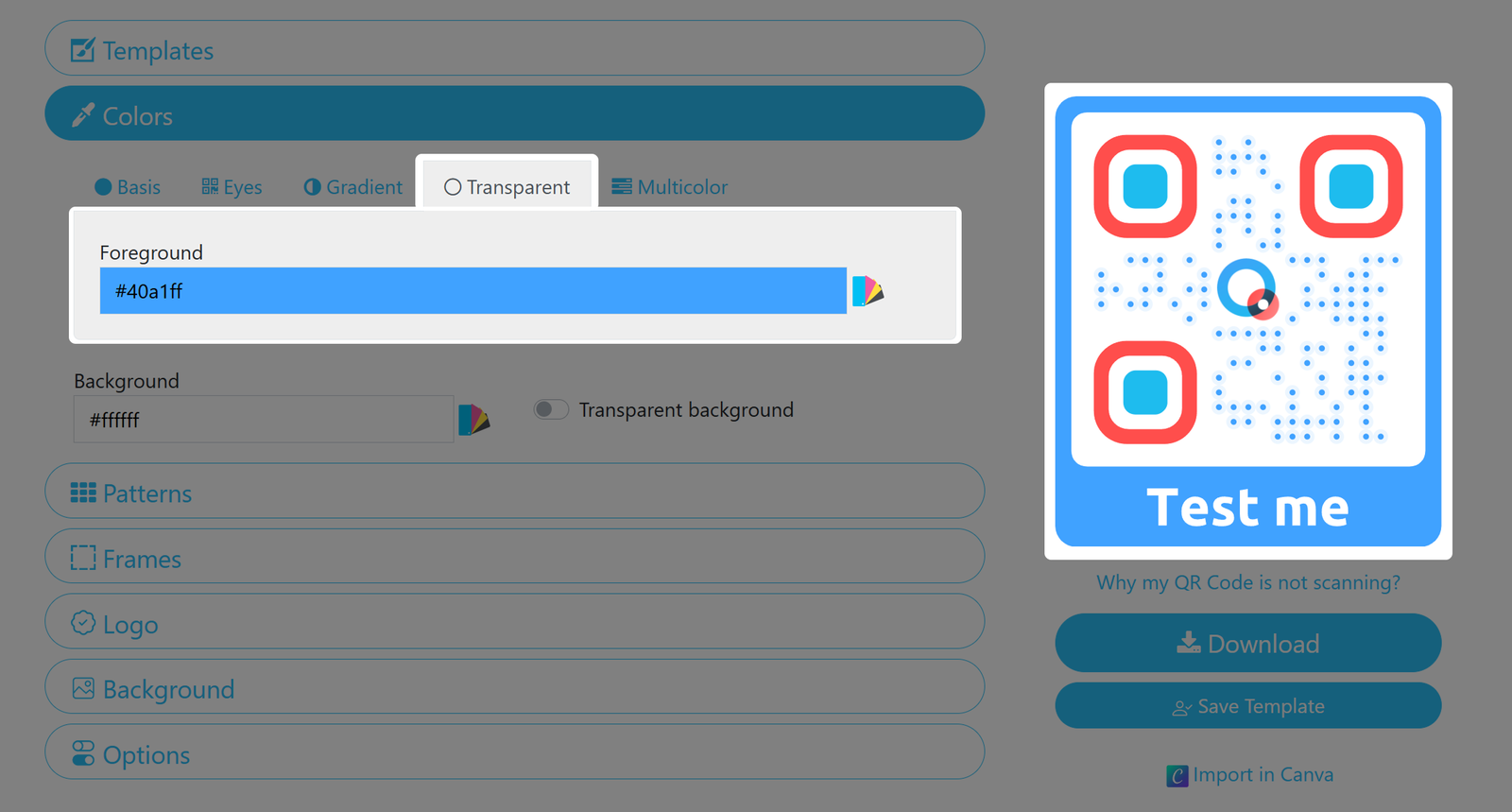
Transparente
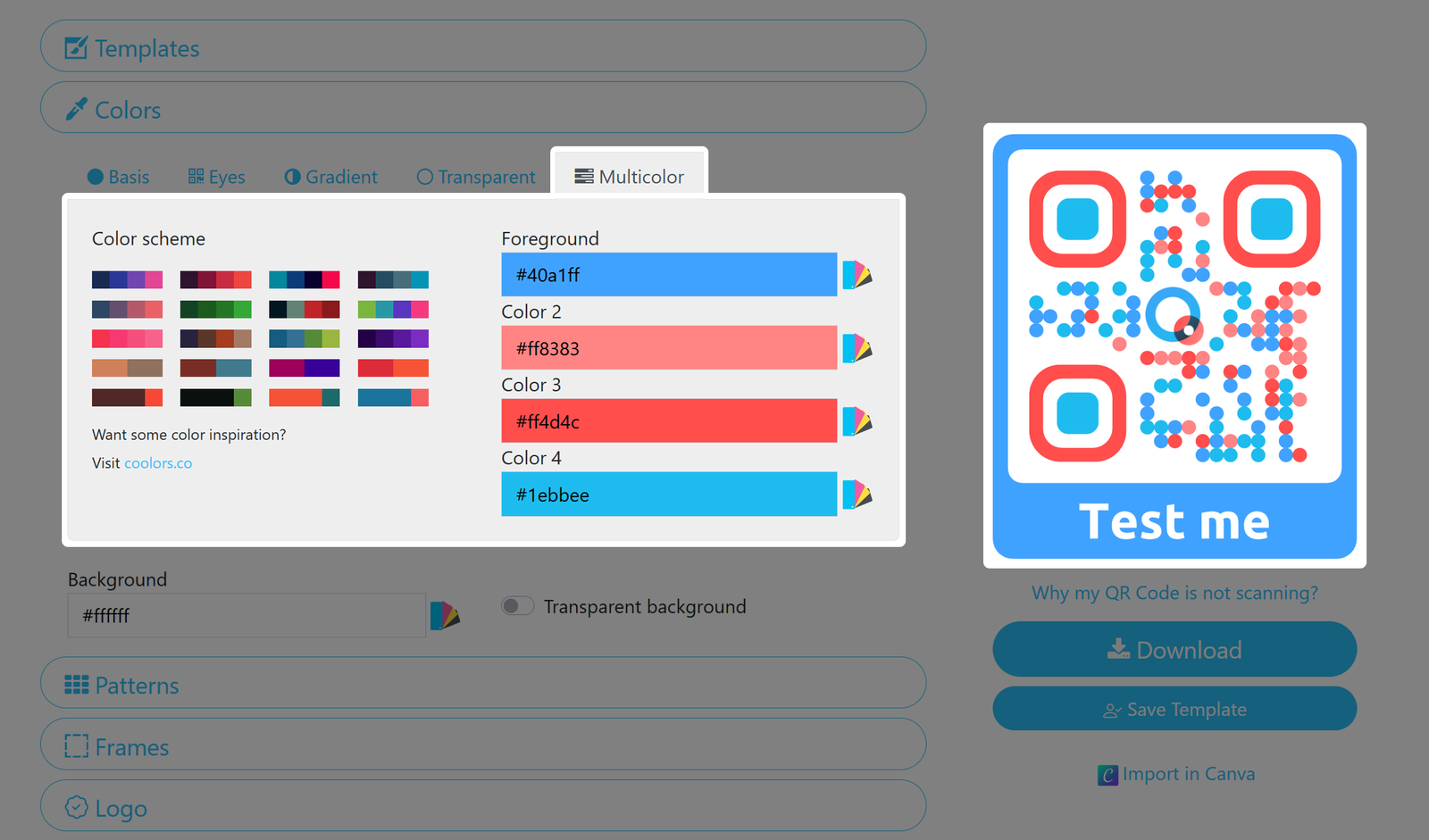
Multicolorido
Dê ao seu código QR a melhor identidade de marca, aplicando as cores da sua identidade corporativa até mesmo no ponto mais pequeno. Defina uma cor de primeiro plano e até três cores adicionais para dar mais vida ao seu código QR.
Fundo
Para todas as definições acima referidas, pode ainda definir a cor de fundo pretendida para o seu design.
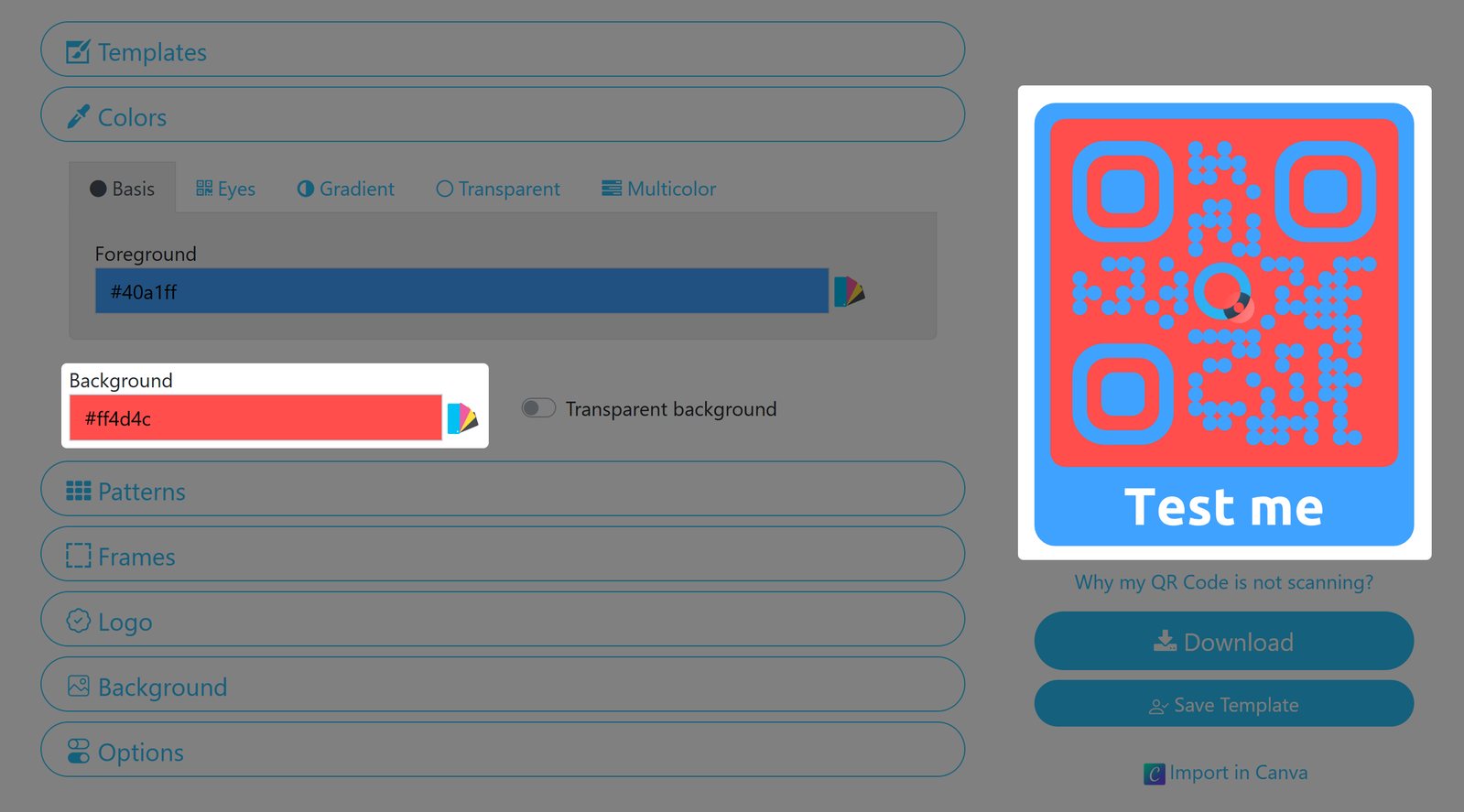
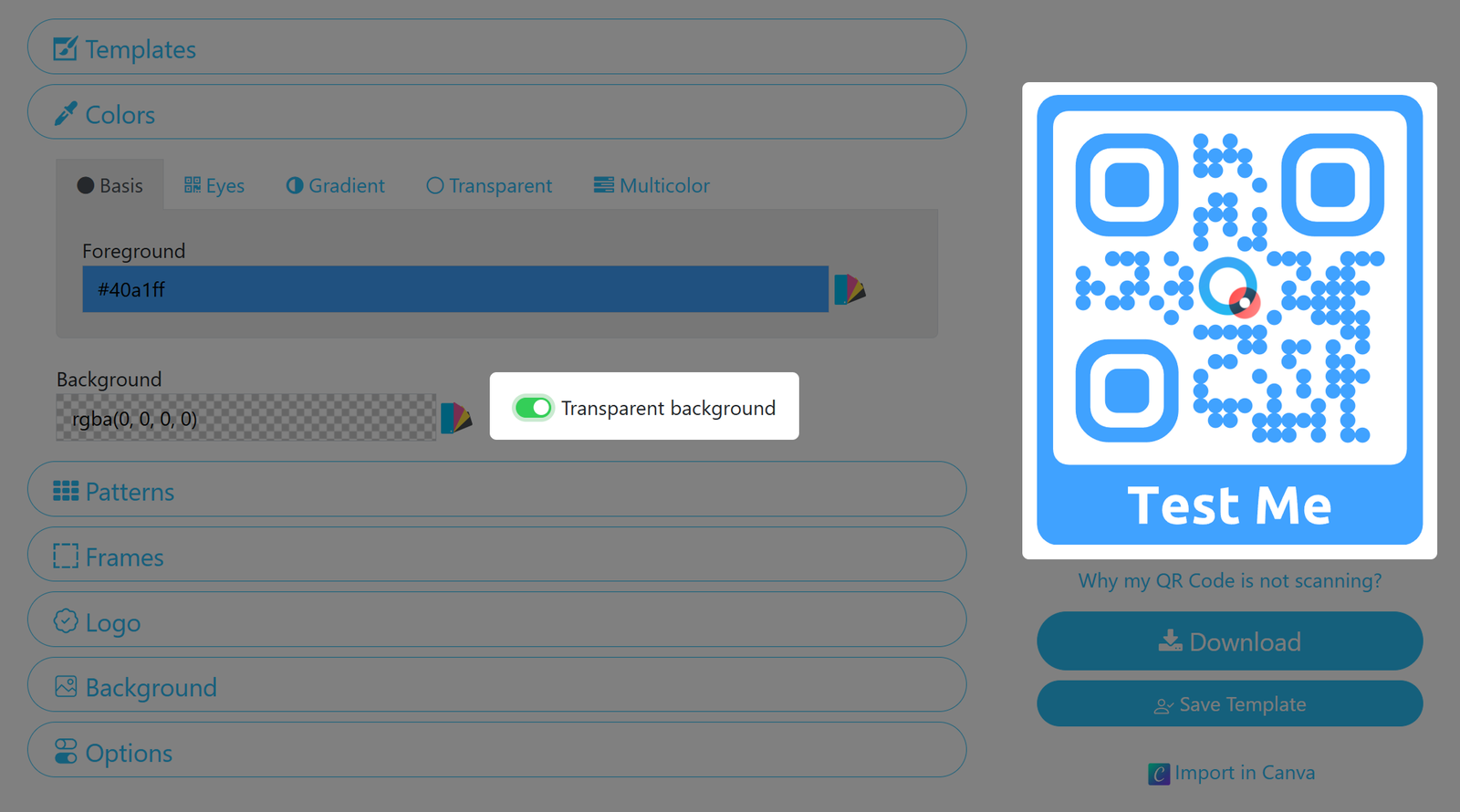
Pode ativar a opção Fundo transparente: apenas os elementos do código QR serão apresentados, mas não a cor de fundo; isto é útil se pretender que o suporte em que o código QR será impresso apareça como fundo visível. As regras de contraste continuam a aplicar-se!
Se quiser imprimir o código num suporte da mesma cor que o código, utilize também o separador Transparente!
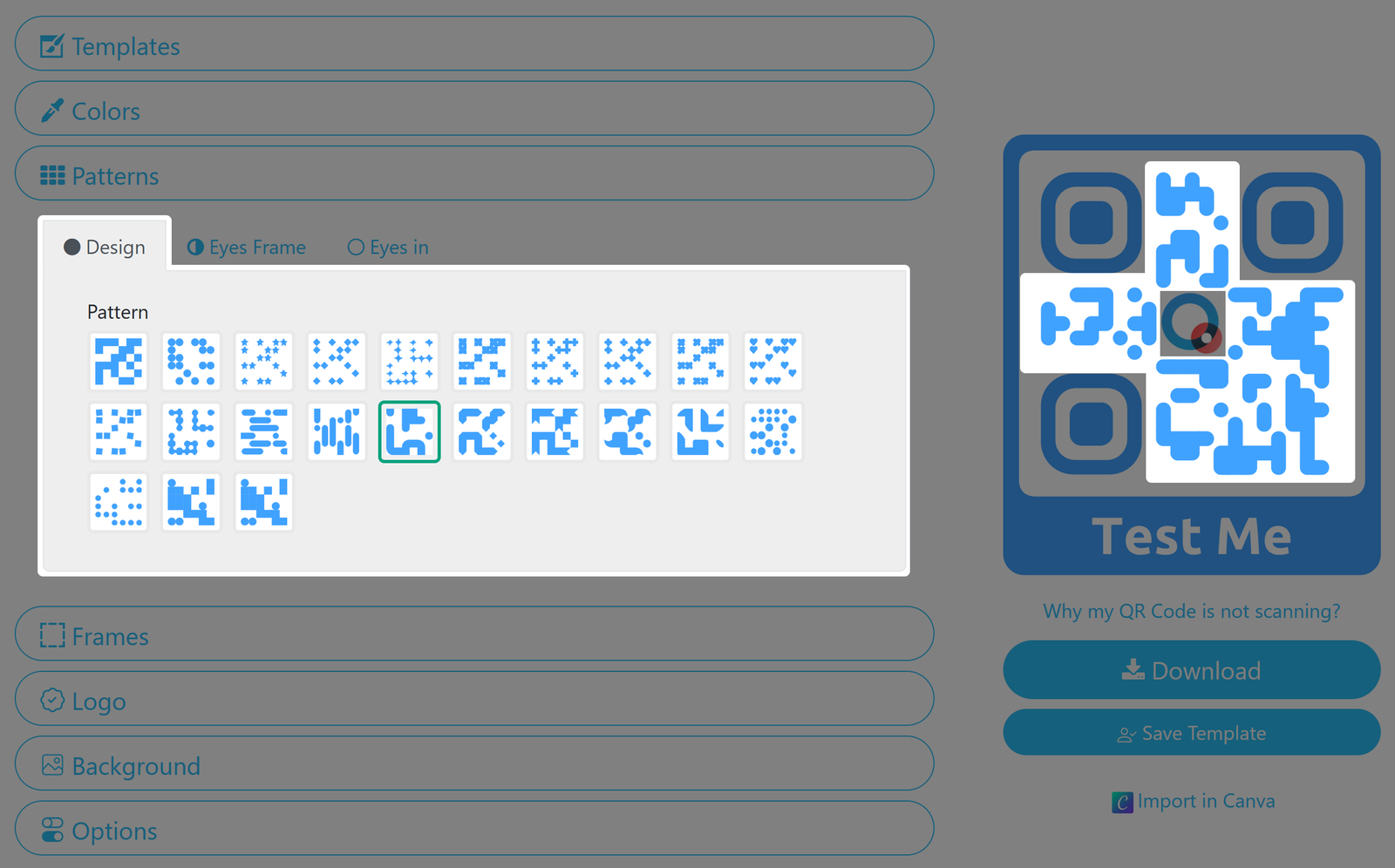
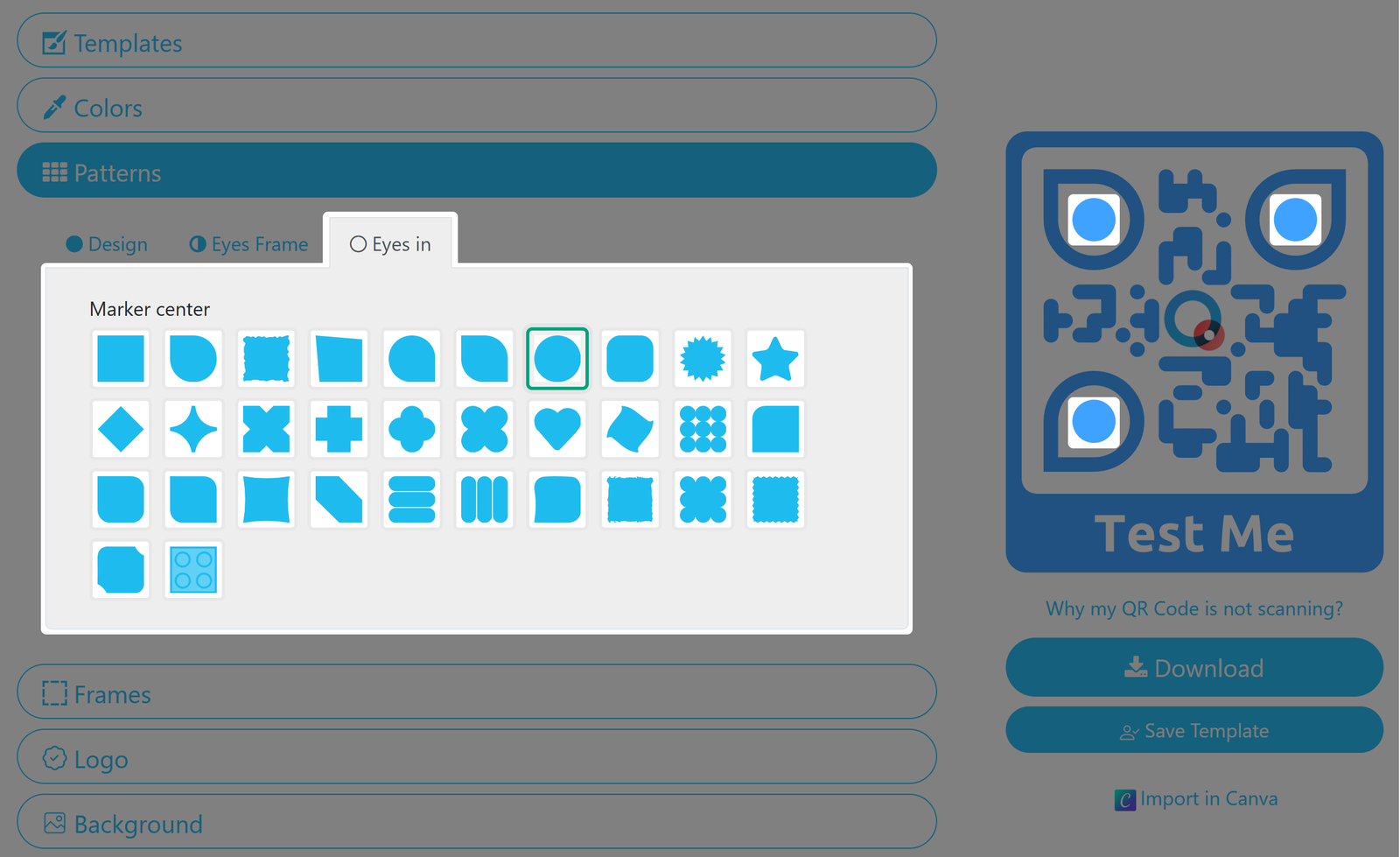
5. Select design patterns for your QR Code
The markers are important, as they indicate the correct orientation of the QR Code.
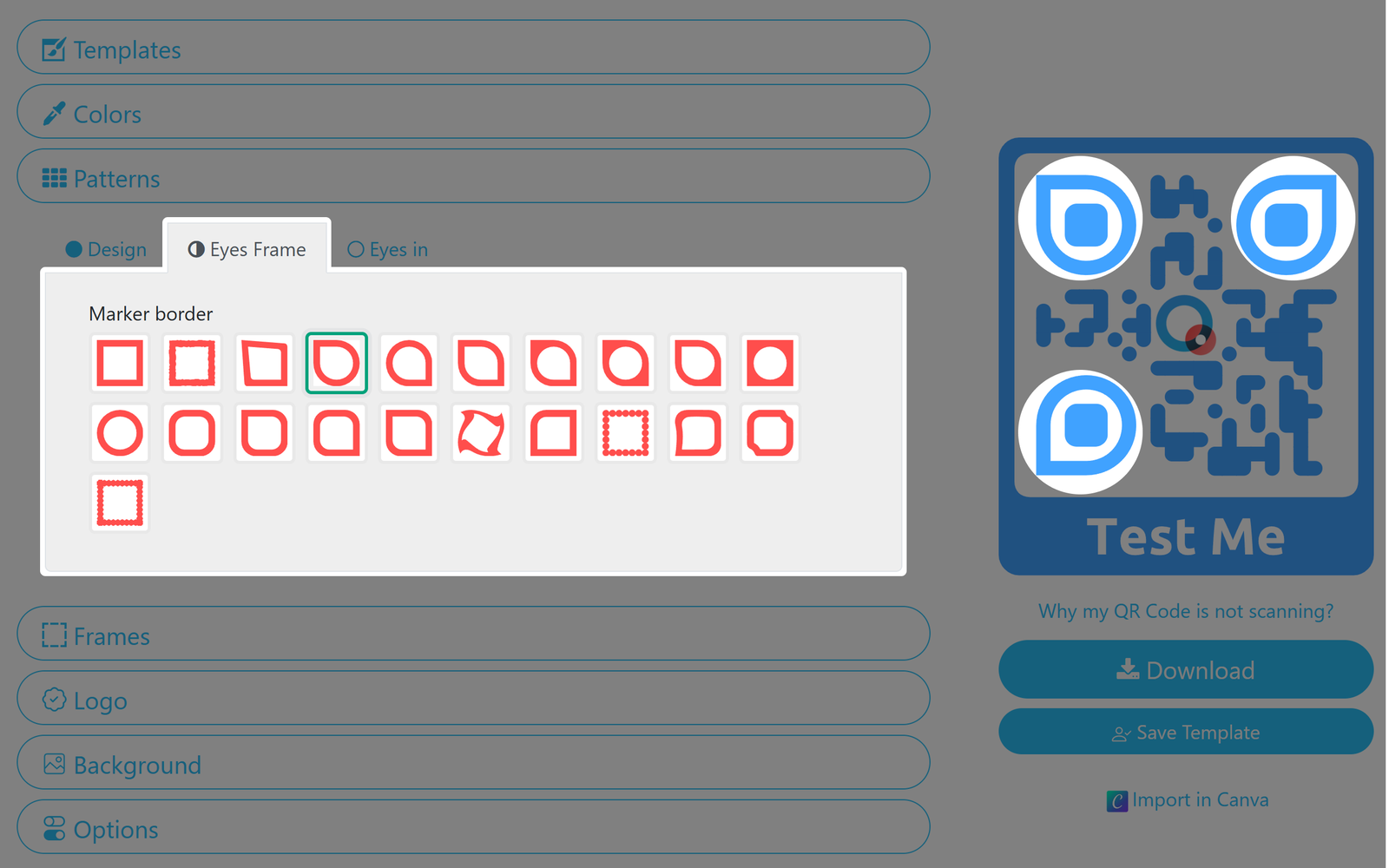
6. Select your QR Code's frame and set a label
Choose between frames with or without labels and define a separate frame color. You can also set the text size, font, and color of your label.
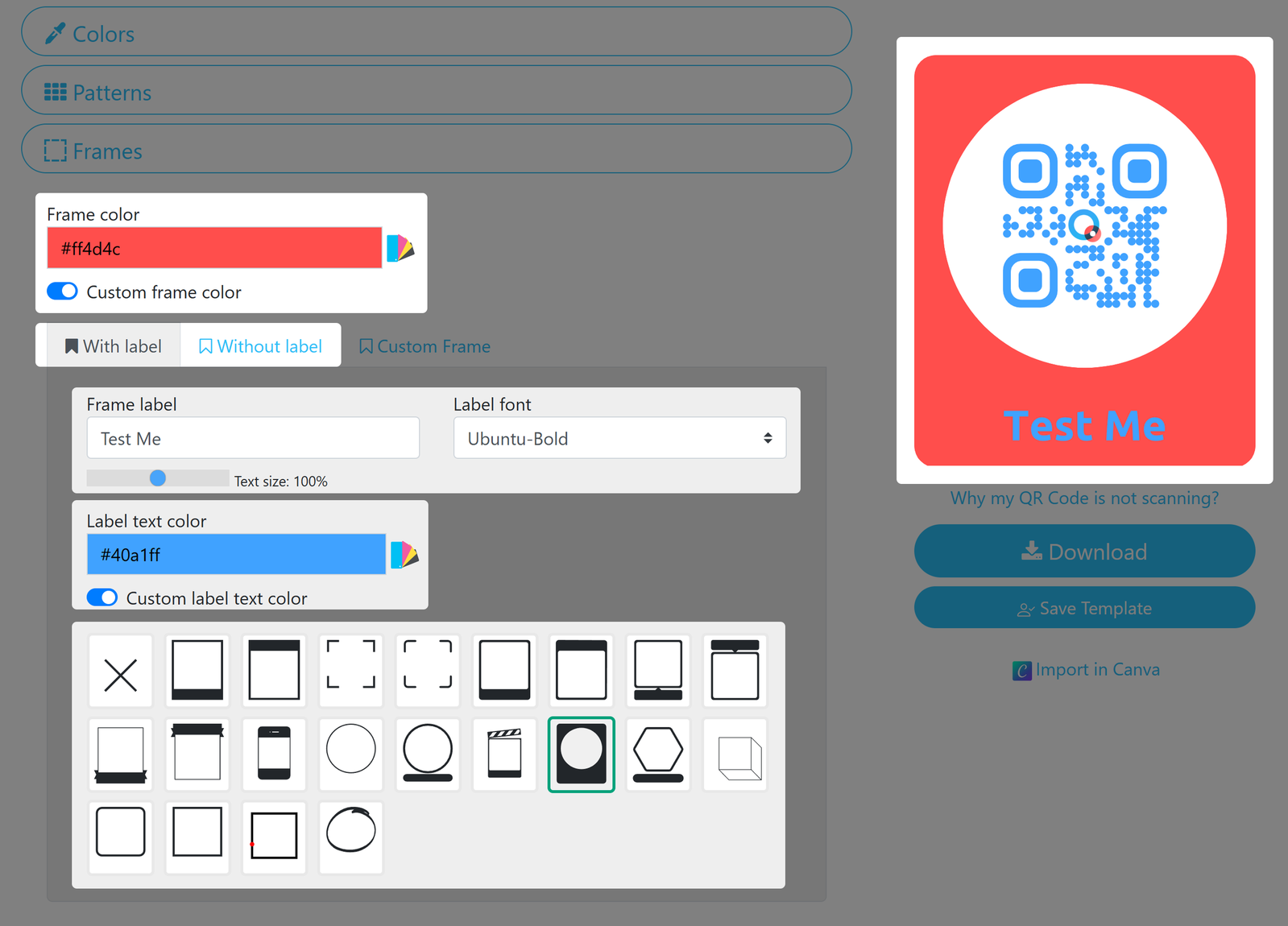
Custom Frames are only available for our Enterprise customers. Contact us if you want to learn more.
7. Choose or upload your QR Code's logo
You can also set your logo as the QR Code's background (see below).
8. Use an image as your QR Code's background
You can upload an image and set it as your QR Code's background.
Please be aware that this is an experimental feature. When using it, please make sure to also activate Transparent in the Colors Pane, and always test your QR Code - especially before printing in high volumes!
9. Set your QR Code's size and ECL
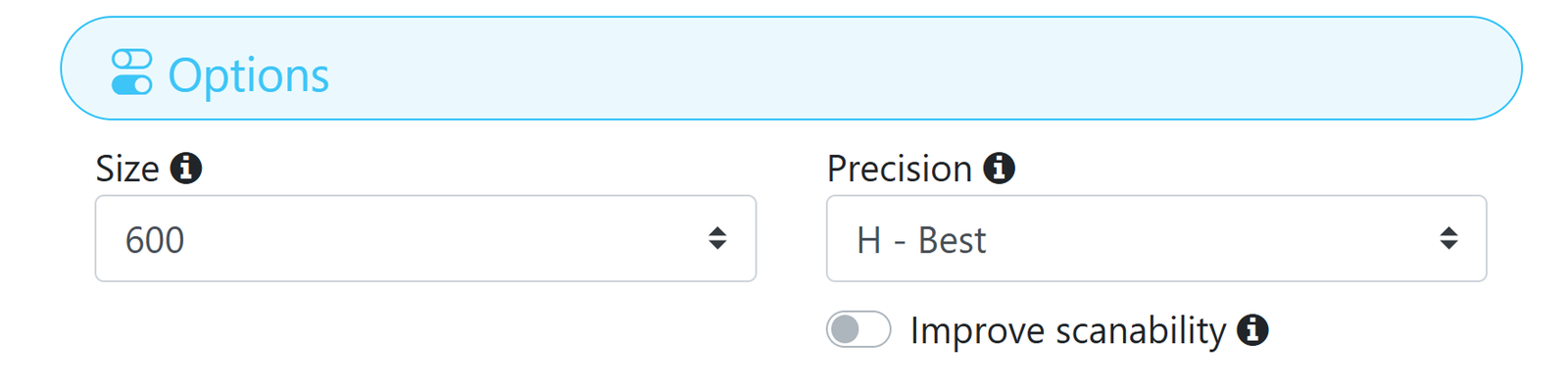
Via the options pane you can choose your QR Code's Size and Precision (also known as Error Correction Level). The standard settings of 600 and H - Best are recommended, but the optimal values variy depending on the type of design you are creating.
The size parameter only affects downloaded QR Codes in PNG format. Vector formats do not have a fixed size since the can be scaled to any size.
In case your QR Code does not properly scan, try the Improve scanability setting and retest the Code.
10. Download your QR Code
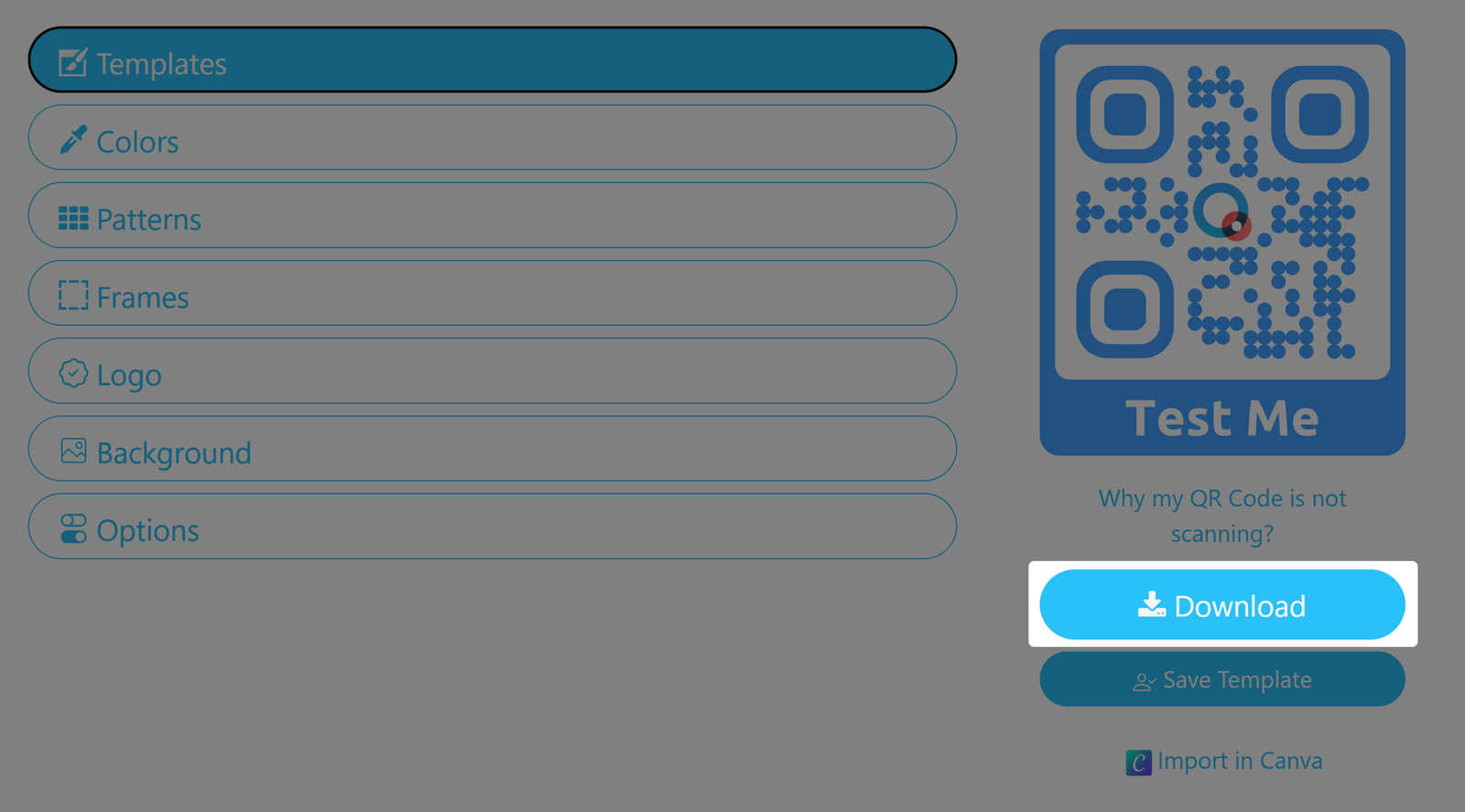
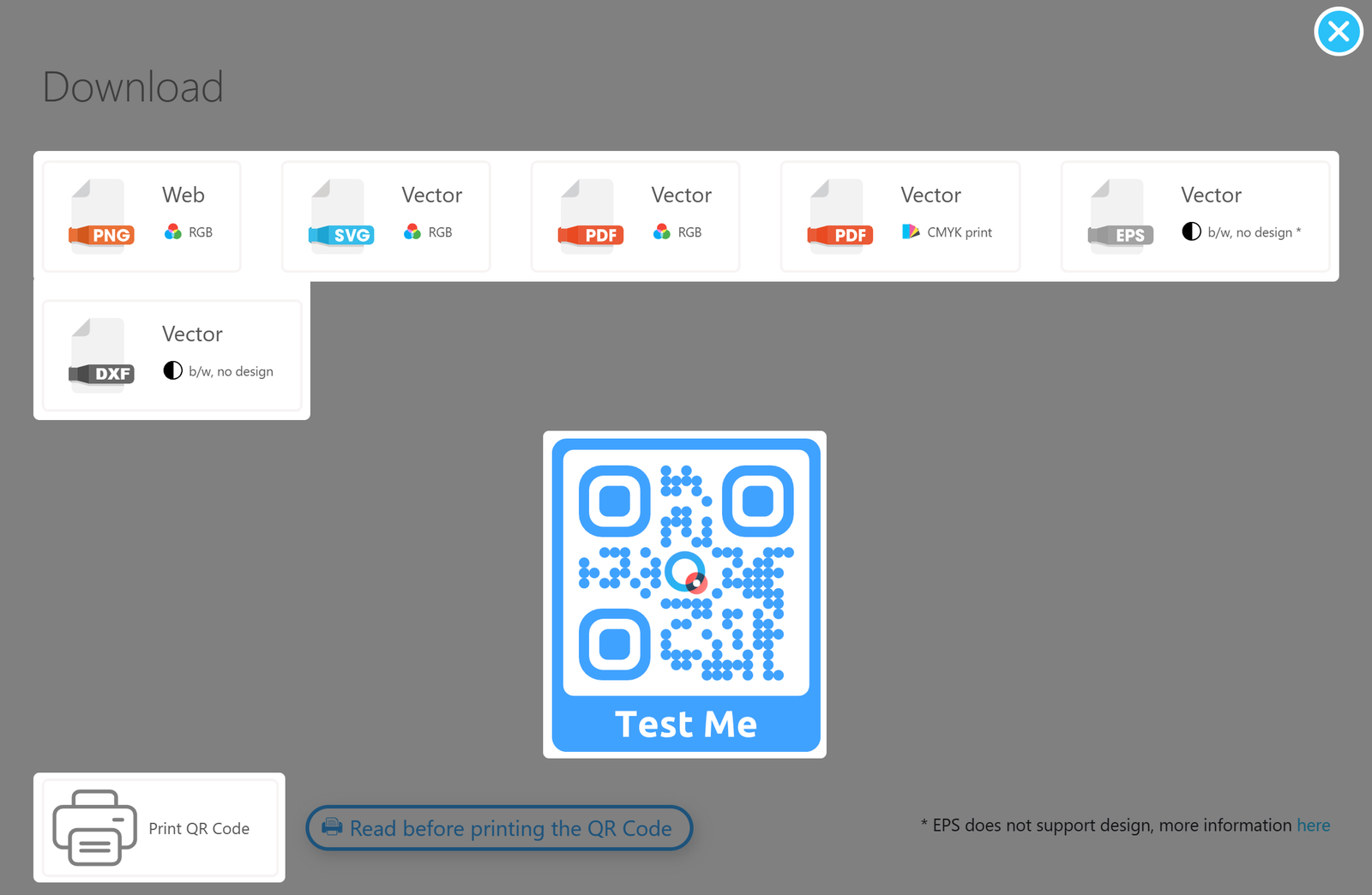
You can download your designed QR Code as PNG, SVG or PDF, and without designs as EPS or DXF; this will mainly depend on whether you want to print your Code or use it in digital media.
Working with templates
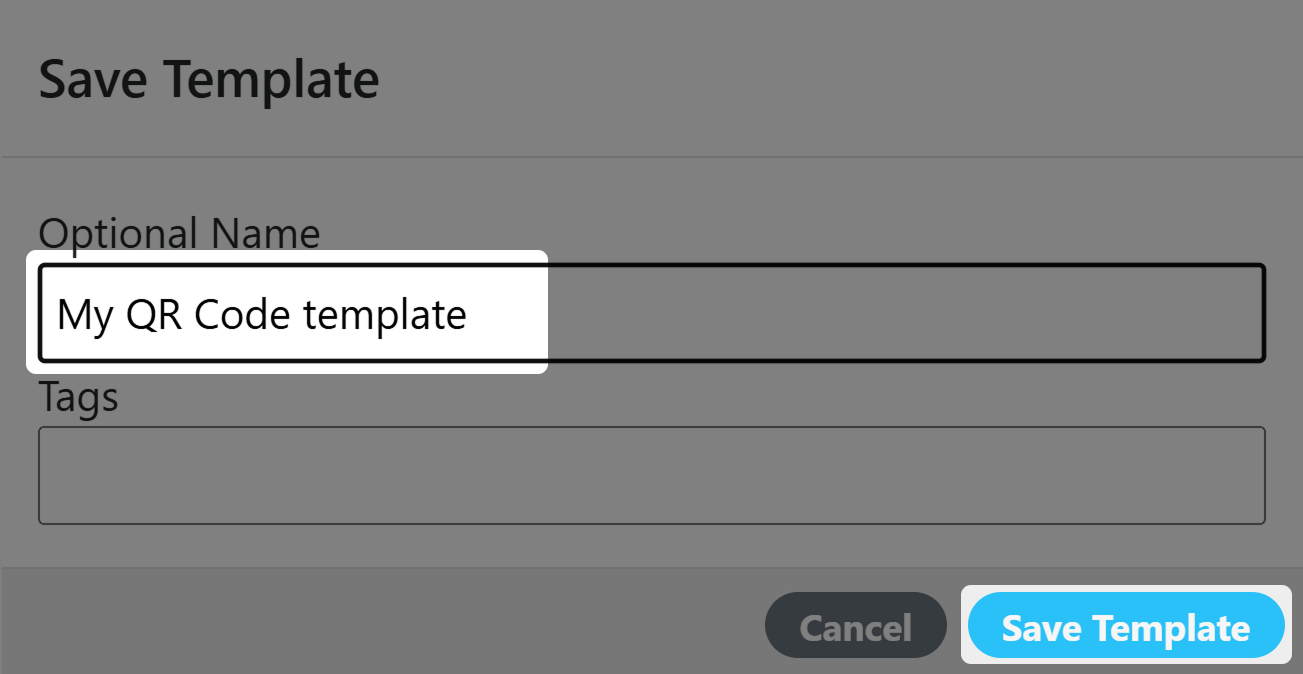
Saving your custom templates
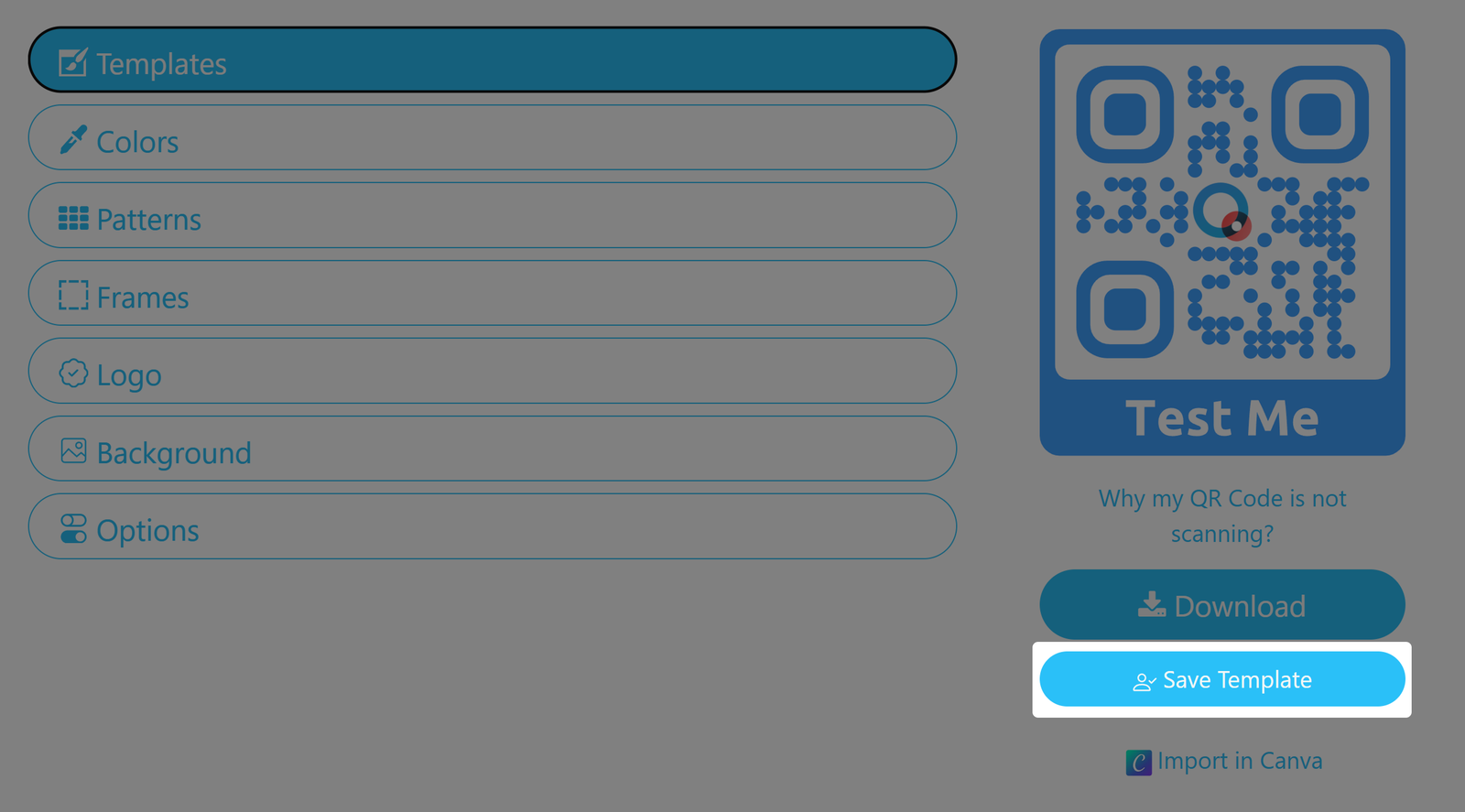
Optional template attributes
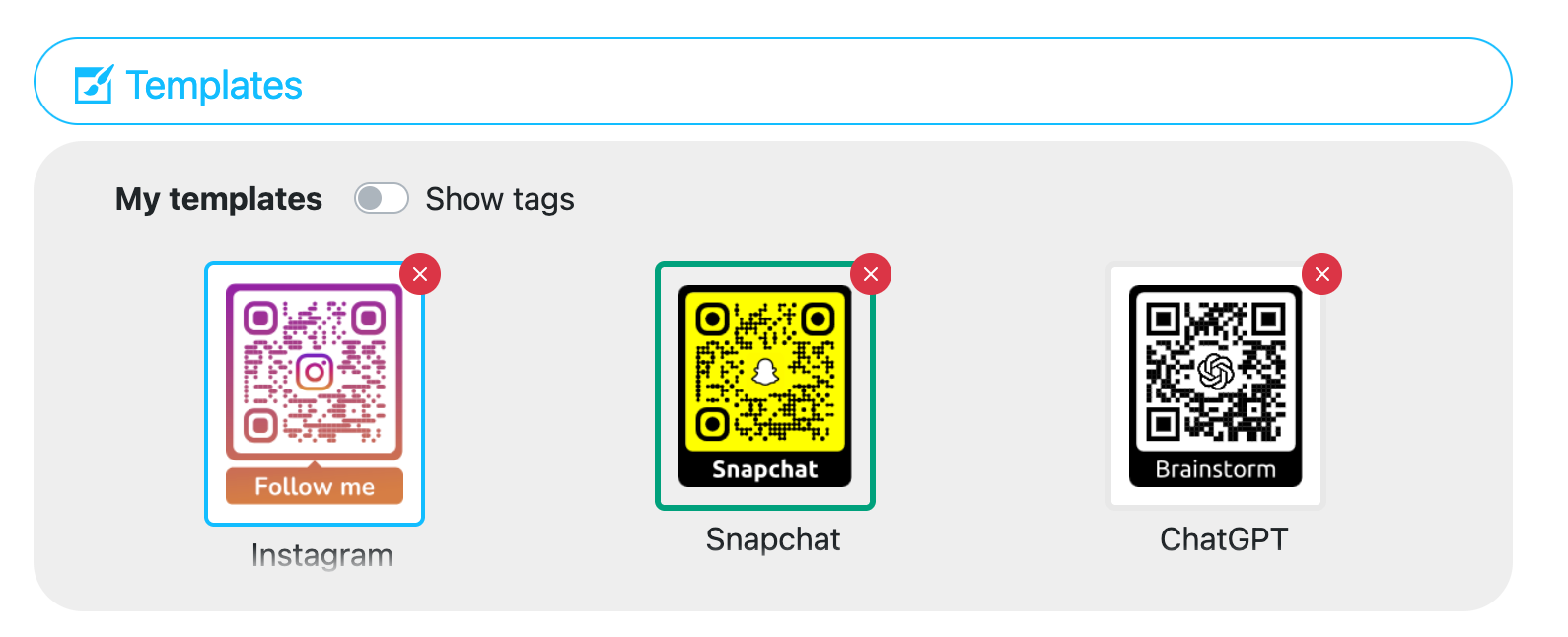
Template Markers
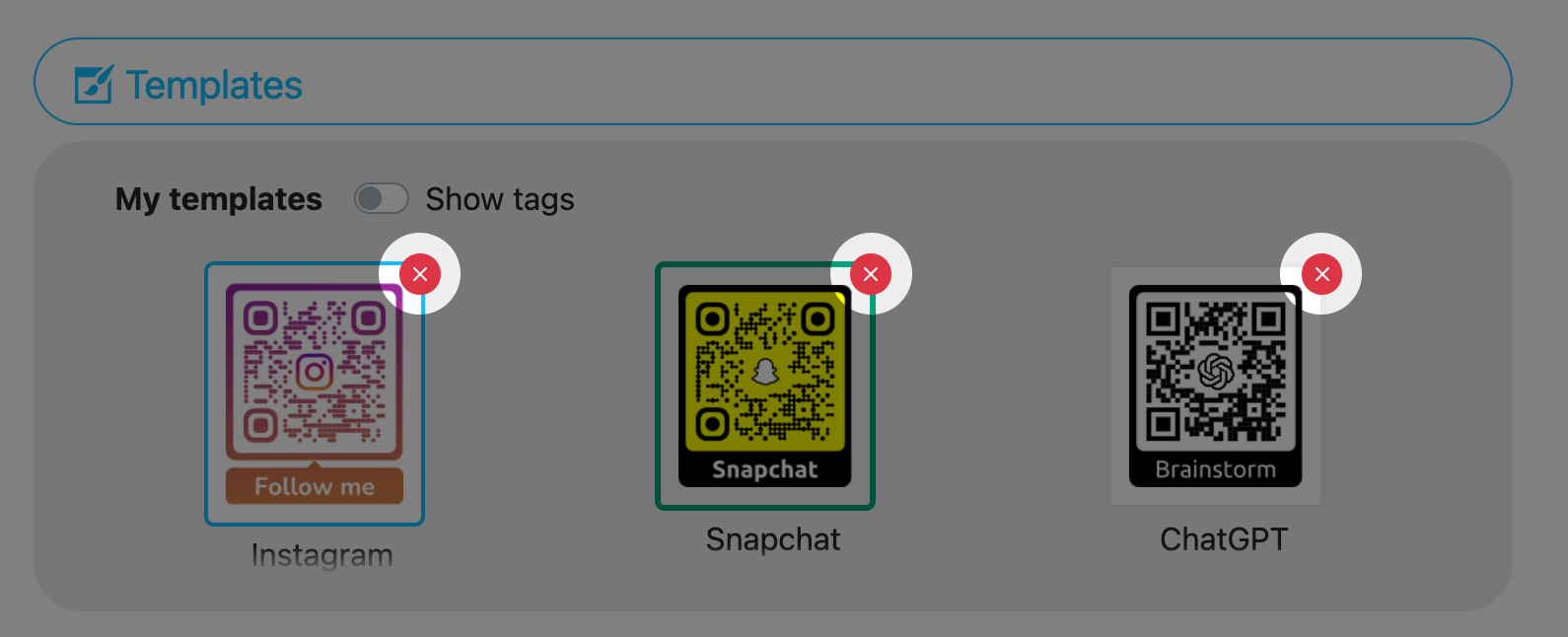
Deleting a template
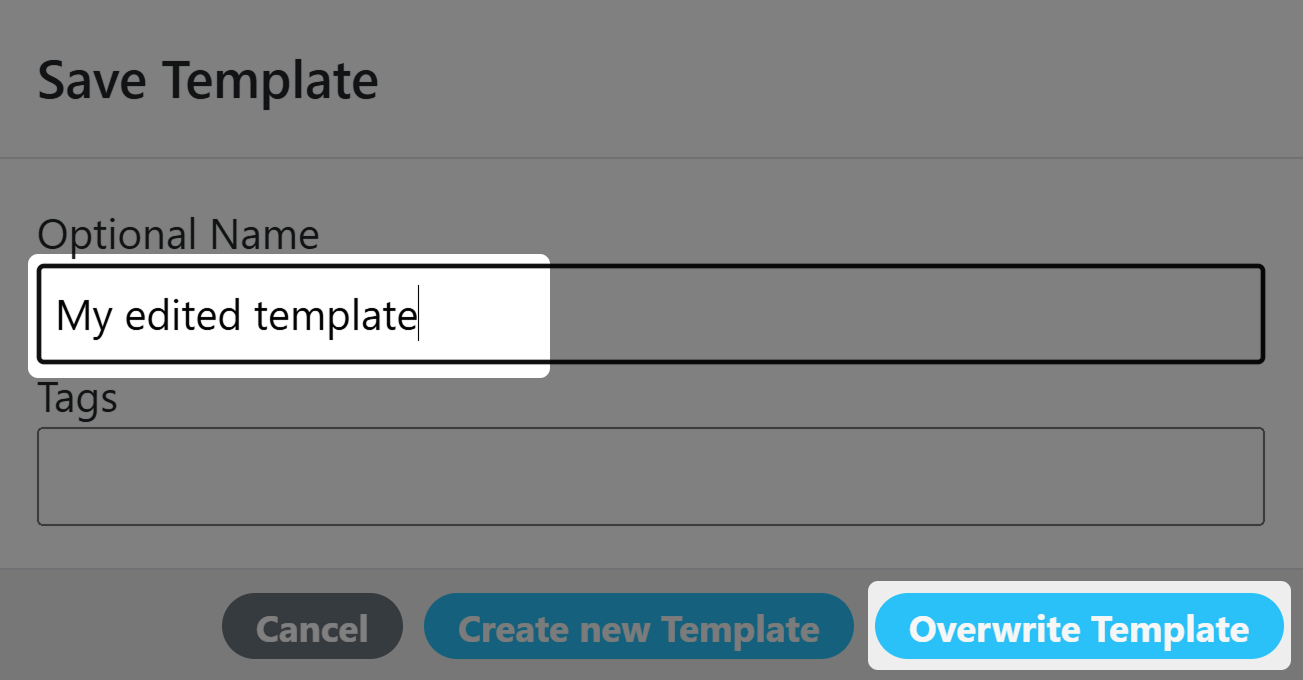
Overwriting an existing template
Limitações do Designer
Produto
Dependente do formato de arquivo selecionado e dos recursos usados em um Designer QR Code a matriz a seguir explica se a saída é vetorial puro ou vetorial combinado com gráficos raster.
| SVG | EPS (deprecated) | ||
|---|---|---|---|
| With SVG Logo | Pure vector | Pure vector | Pure vector |
| With Gradient | Pure vector | Pure vector | Mixed vector / raster |
Editor / Visualizador
Dependente do formato selecionado e dos recursos usados em um Designer QR Code a matriz a seguir explica quais visualizadores ou editores podem ser usados para visualizar e editar os QR Codes.
| SVG | EPS (deprecated) | ||
|---|---|---|---|
| With SVG Logo | Browser only | Browser / Illustrator | Illustrator |
| With Gradient | Browser / Illustrator | Browser / Illustrator | Illustrator |
Você pode obter resultados diferentes dependendo da versão e capacidades do seu software de projeto.